
Introduction
“Applying the right Windows 11 system optimization settings is essential for smooth performance. While Windows 11 brings a sleek visual redesign, better security, and native gaming features, its default configuration carries many background services, visual animations, and hidden resource-consuming tasks.”
This step-by-step Windows 11 system optimization guide covers safe, reversible tweaks only. No risky registry deep edits or third-party unknown optimizer software. All adjustments are operated inside built-in Windows menus, fully compatible with Windows 11 22H2/23H2 latest versions. Whether you want smoother daily office work, lower resource overhead for old hardware or stable gaming performance, these optimization settings will deliver obvious improvements.
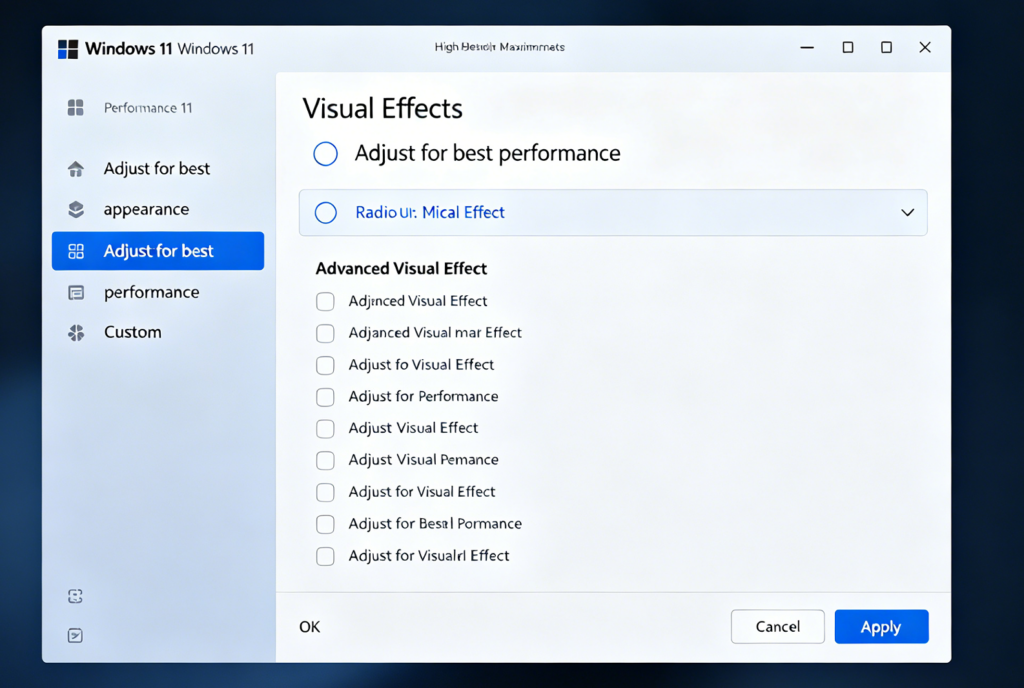
1. Disable Unnecessary Visual Effects for Instant Resource Release
Windows 11’s transparent backgrounds, window animations and shadow effects consume a noticeable amount of GPU and memory resources, especially noticeable on integrated graphics devices.
Operation Steps
-
- Right-click This PC → Properties → Advanced system settings → Advanced tab → Settings under Performance column
-
- Select Adjust for best performance to turn off all fancy visual effects automatically
-
- Manually retain only 2 options if you need basic fluency: Smooth edges of screen fonts + Show thumbnails instead of icons
-
- Click Apply and OK to save changes
Image Suggestion: Screenshot of Windows 11 Performance Options visual effects configuration page
Optimization Effect: Free up 300MB–800MB RAM on lightweight devices, reduce desktop window switching stuttering.
2. Modify Startup Apps to Shorten Boot Time
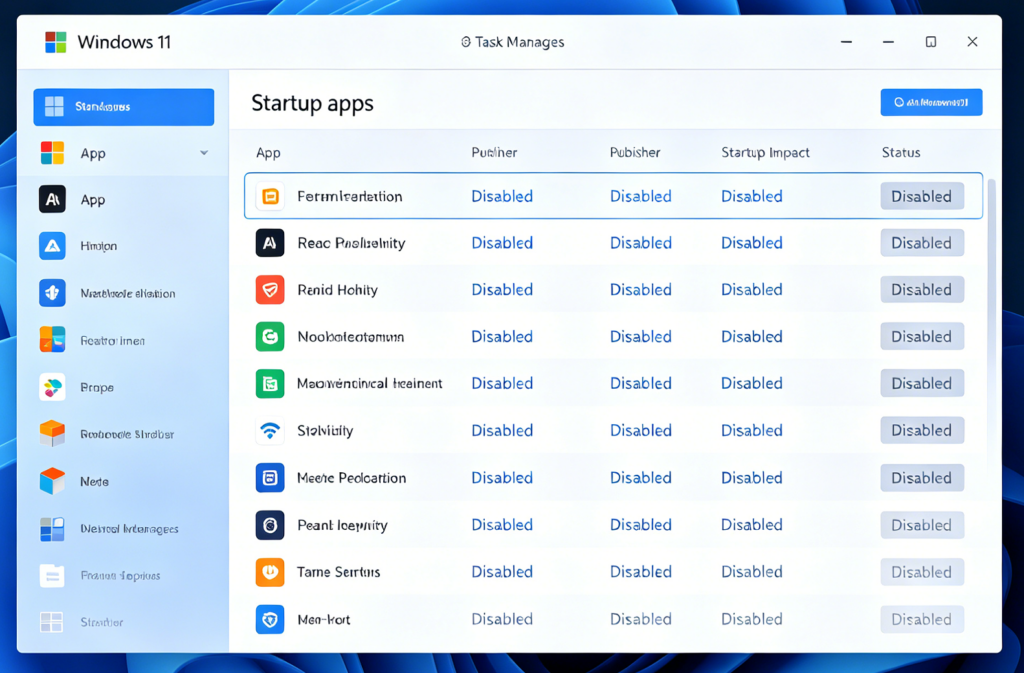
A large number of software automatically starts alongside the system after installation, which lengthens boot duration and keeps programs running silently in the background. This is one of the most ignored Windows 11 optimization settings.
Operation Steps
-
- Press Ctrl + Shift + Esc to open Task Manager
-
- Switch to Startup apps tab
-
- Right-click and Disable all non-mandatory startup items: WeChat, browsers, download tools, cloud disk software, printer assistants
-
- Only keep necessary drivers, antivirus software and keyboard/mouse management tools enabled
Image Suggestion: Task Manager Startup apps disable list screenshot
Optimization Effect: Cut system boot time by 40% on average, reduce long-term idle memory occupancy.
3. Turn Off Background Apps & Unused System Services
“Managing background app permissions is another core part of your Windows 11 optimization settings.” “Another critical aspect of Windows 11 system optimization settings is managing background app permissions and system services that silently drain your resources.” Microsoft allows UWP apps like Mail, Calendar, Photos to run in the background for push notifications, which continuously occupy disk read-write and memory.
Step 1 Close Background Apps
Settings → Apps → Installed apps → Click three dots on each app → Advanced options → Background app permissions → Choose Never
Step 2 Disable Redundant System Services (Safe Version)
-
- Press Win + R, input
services.mscand run
- Press Win + R, input
-
- Set these services from Automatic to Manual/Disabled:
-
- SysMain (Superfetch, causes HDD disk 100% usage)
-
- Print Spooler (disable if you have no printer)
-
- Xbox-related background services (for non-gaming users)
4. Disk Optimization & Virtual Memory Reasonable Allocation
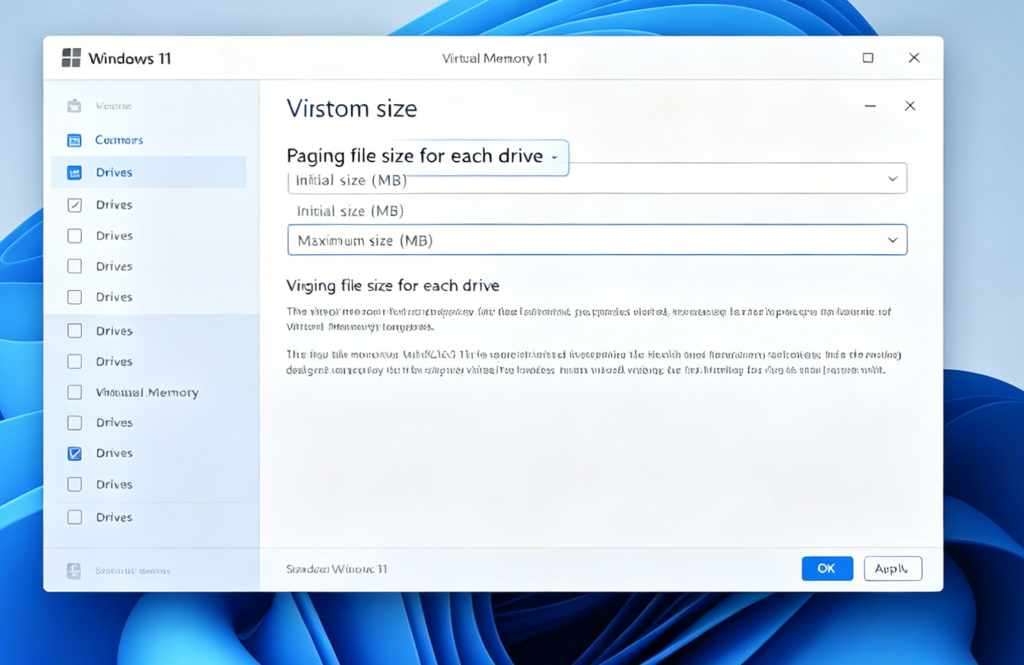
Mechanical hard drives (HDD) suffer severe lag under Windows 11 default disk maintenance rules, while unreasonable virtual memory settings trigger frequent disk writing.
-
- For HDD: Open This PC → Right-click C drive → Properties → Tools → Optimize → Run optimization monthly
-
- Virtual Memory allocation: Advanced system settings → Performance Settings → Advanced → Virtual memory Change Rule: Automatically managed off; set custom size = 1.5× physical RAM capacity, place the page file on D drive instead of system C drive.
Image Suggestion: Virtual memory custom size configuration interface screenshot
5. Disable Bloatware, Widgets and Unused Features
Windows 11 preloads plenty of useless built-in applications and components that waste storage and CPU resources:
-
- Remove redundant UWP bloatware via Settings > Apps > Installed apps
-
- Right-click Taskbar → Taskbar settings, turn off Widgets, Chat, Search highlight and Task View unnecessary icons
-
- Disable OneDrive automatic sync if you do not use cloud file backup
6. Power Plan Switch for Maximum Performance
Laptops often default to Balanced power mode to save battery, which limits CPU and GPU frequency output:
Settings → System → Power & battery → Power mode → Select Best performance
For desktop computers, enter Control Panel Power Options and choose High performance plan. This tiny Windows 11 optimization setting directly improves software loading speed and gaming frame stability.
Important Notes for Safe Optimization
-
- All tweaks are reversible. If you encounter abnormal system behavior, restore settings to default status directly;
-
- Do not download cracked system optimization tools, most carry adware and tamper with core system files;
-
- After finishing all configurations, restart the computer once for all optimization rules to take full effect.
Conclusion
Windows 11 does not require complicated technical operations to reach an ideal running state. The six groups of core optimization settings above solve most common pain points: slow startup, high memory usage, disk 100% occupation and game frame dropping. For entry-level old laptops, these adjustments can greatly extend service life and daily usability. If you are looking for long-term stable Windows running experience, regular cleaning of junk files combined with the above performance settings will keep your device running smoothly for years.