
Experiencing sudden frame drops, micro-stutters, or thermal throttling while playing your favorite games? Learning how to fix high CPU usage in Windows 11 is crucial for maintaining high FPS and smooth gameplay. While Windows 11 brings modern features like DirectStorage and Auto HDR, background system processes can quietly consume vital processor threads and memory.
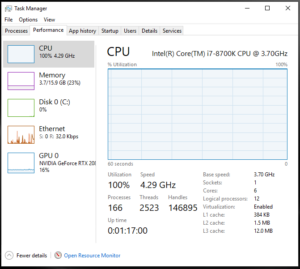
Whether your CPU hits 100% usage on the desktop or your RAM stays saturated during heavy gaming sessions, this step-by-step guide will help you eliminate background bottlenecks safely.
What Causes High CPU & RAM Usage in Windows 11?
Before tweaking your settings, understanding the root causes of performance dips helps you prevent future lag:
- Background Telemetry & SysMain: Windows services like Superfetch (SysMain) continuously scan and index disk files in the background.
- Game Bar & Overlay Conflicts: Active overlays from Discord, Steam, or Xbox Game Bar record videos in real time, hogging CPU cores.
- Unnecessary Startup Applications: Programs running silently in the system tray steal valuable system RAM.
- Outdated Display Drivers: Incompatible GPU drivers force the CPU to render software fallbacks.
Step-by-Step Guide to Fix High CPU Usage in Windows 11
Method 1: Optimize Windows Game Mode and Hardware Acceleration
Windows 11 features a built-in Game Mode that prioritizes system resources for active gaming processes while pausing background updates.
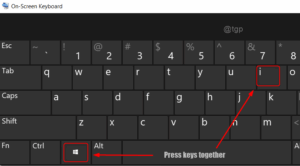
- Press
Win + Ito open Settings. - Navigate to Gaming > Game Mode and turn it On.
- Next, go to System > Display > Graphics.
- Click Change default graphics settings and toggle Hardware-accelerated GPU scheduling (HAGS) to On.
- Restart your computer to let your graphics card handle heavy rendering workloads.
Method 2: Disable SysMain (Superfetch) and Telemetry Services
SysMain is designed to preload frequently used apps, but it often triggers severe RAM and CPU spikes during gaming.
- Press
Win + R, typeservices.msc, and hit Enter. - Scroll down to find SysMain, right-click it, and select Properties.
- Change the Startup type to Disabled, and click Stop.
- Click Apply and OK to save changes.
Method 3: Disable In-Game Overlays and Background Recording
Background recording apps consume up to 15% of your total processing power during gameplay.
- Go to Settings > Gaming > Captures.
- Turn off Record what happened (Background recording).
- Open your Discord settings, navigate to Overlay, and disable Enable in-game overlay.
Method 4: Switch to the High-Performance Power Plan
By default, Windows 11 uses a balanced power plan that throttles CPU clock speeds to save energy.
- Press
Win + R, typecontrol, and press Enter to open Control Panel. - Set View by to Large icons and select Power Options.
- Choose High Performance or Ultimate Performance to keep your CPU cores active at full frequency.
Pro Tip: Upgrade to Windows 11 Pro for Advanced Gaming Optimizations
While basic settings help reduce lag, Windows 11 Home lacks access to the Local Group Policy Editor (gpedit.msc). Group Policy allows gamers to completely disable heavy background telemetry, stop automatic Windows updates during gameplay, and optimize RAM allocation at the kernel level.
Upgrading your PC with an authentic Windows 11 Pro key gives you complete control over background services, ensuring your system delivers maximum FPS without sudden background stutters. You can safely purchase a genuine license key from our online store to unlock full system performance today.
Method 5: Disable Hardware Acceleration in Discord and Web Browsers
If you run Discord, Chrome, or Spotify on a second monitor while gaming, their hardware acceleration feature forces your CPU and GPU to process UI graphics continuously. Go to your browser and Discord settings, search for Hardware Acceleration, and toggle it off to reclaim immediate CPU rendering bandwidth.
Unresponsive controls and frame drops should never interrupt your gaming setup. By adjusting your power plan, disabling background services like SysMain, and upgrading your operating system, you can effectively fix high CPU usage in Windows 11 and enjoy peak gaming performance.