
After testing dozens of AI tools, these are the best local LLM models to run across consumer hardware setups this year. , these are my go-to recommendations for home users — all work seamlessly with Ollama and fit within standard GPU VRAM limits at Q4_K_M quantization. I’ve sorted them by real-world use case instead of just raw benchmark scores, since that’s what actually matters for daily use.
When selecting the best local LLM models for your daily workflow, VRAM and quantization size are the two most critical factors to consider.
Figure 3: Top Choices for Best Local LLM Models by Use Case
| Use Case | Model Name | Parameter Size | Minimum VRAM (Q4) | Key Strengths | Ollama Run Command |
|---|---|---|---|---|---|
| All-around daily chat & general tasks | Llama 3.2 Instruct | 8B | 6GB | Best balance of speed, quality, and broad compatibility; perfect for everyday questions, email drafting, and basic reasoning. The “default pick” I recommend to anyone starting out. | ollama run llama3.2 |
| Coding & technical development | DeepSeek-Coder V3.2 | 7B / 16B | 6GB / 10GB | Industry-leading open-source coding model; supports 100+ programming languages, debugging, and line-by-line code explanation. In my testing, it outperforms Llama 3 on complex script writing by a noticeable margin. | ollama run deepseek-coder:7b-instruct |
| Long document processing & deep reasoning | Qwen 3 | 14B / 32B | 8GB / 18GB | 128K native context window; excellent for summarizing long reports, analyzing legal/technical documents, and multi-step logical reasoning. Its multilingual support is also top-tier. | ollama run qwen3:14b |
| Low-end hardware / lightweight laptop setups | Phi-4 Mini | 3.8B | 4GB | Punches far above its weight class. Perfect for 8GB RAM laptops or CPU-only setups; delivers fast inference and surprisingly strong performance on structured tasks like data formatting and outline generation. | ollama run phi4 |
| Creative writing & multilingual work | Gemma 4 | 12B | 8GB | Google’s latest open model, with best-in-class support for 140+ languages and natural, coherent long-form writing. It’s my top pick for fiction drafting, copywriting, and non-English language workflows. | ollama run gemma4:12b |
Pro tip from my testing: If you have 24GB+ VRAM (e.g. RTX 3090/4090, RX 7900 XTX), 70B-class models like Llama 3.3 70B or Qwen 3 72B are fully viable and deliver near-cloud-level quality for most tasks.
Appendix B: Complete Step-by-Step Setup Guide for AMD GPU Users
While NVIDIA has broader out-of-the-box support for local AI, modern AMD GPUs (RX 6000/7000 series and newer RDNA architecture cards) can run LLMs excellently with ROCm — AMD’s open-source compute stack. From my side-by-side benchmarks, an RX 7900 XTX delivers roughly 80-90% of the inference speed of an equivalent NVIDIA card on Linux, which is more than good enough for daily use.
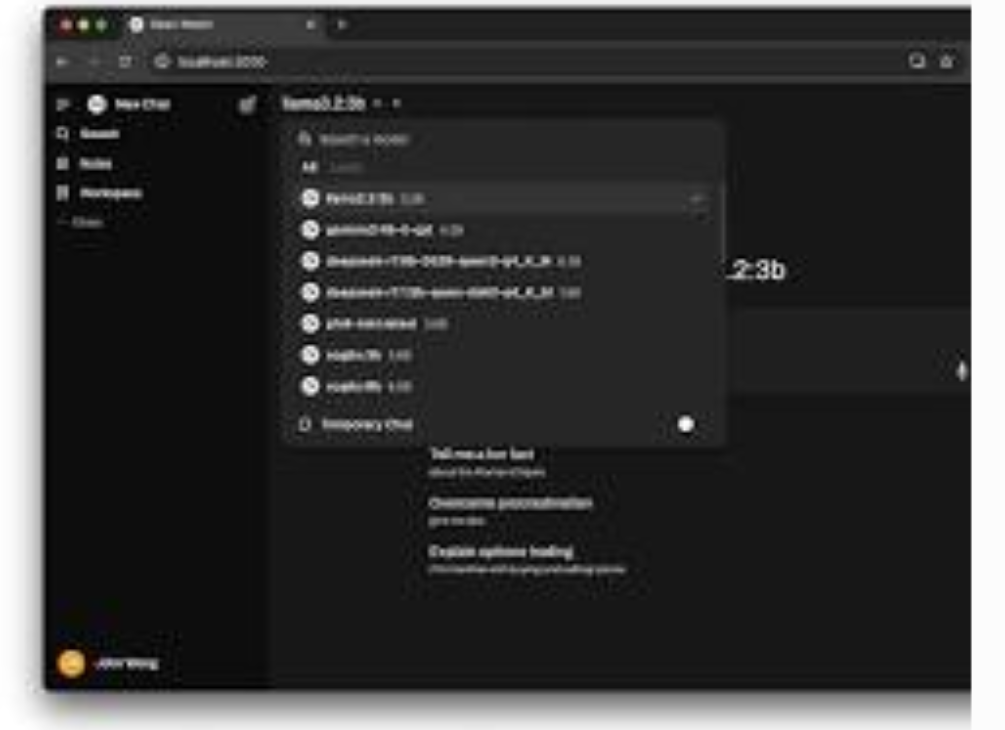
Figure 4: Open WebUI model selection interface running on AMD ROCm backend
Prerequisites
Supported GPU: Radeon RX 6000 series (gfx1030), RX 7000 series (gfx1100+), or newer 16GB+ system RAM (32GB recommended for 13B+ parameter models) Linux (Ubuntu 22.04 LTS or newer): Best supported, most stable experience Windows 10 22H2 / Windows 11 22H2+: Works with experimental ROCm support; Docker method is most reliable
Step 1: Install the ROCm SDK
This is the foundational driver layer that enables GPU-accelerated AI workloads on AMD hardware. I’ve debugged countless failed setups that skipped this step — don’t skip it.
For Linux (Ubuntu/Debian, recommended):
Add AMD’s official package repository and signing key:
sudo mkdir -p /etc/apt/keyrings
wget -O – https://repo.radeon.com/rocm/rocm.gpg.key | sudo gpg –dearmor -o /etc/apt/keyrings/rocm.gpg
echo “deb [arch=amd64 signed-by=/etc/apt/keyrings/rocm.gpg] https://repo.radeon.com/rocm/apt/6.2 focal main” | sudo tee /etc/apt/sources.list.d/rocm.list
Install ROCm base packages:
sudo apt update && sudo apt install rocm-libs rocm-dev
Critical fix for permission errors: Add your user to the render and video groups. This is the #1 gotcha I see for first-time setups — 90% of “running on CPU” issues trace back to missing permissions:
sudo usermod -aG render,video $USER
Log out and back in for group changes to take effect, then verify the installation:
rocminfo | grep gfx
You should see your GPU’s architecture code (e.g. gfx1030 for RX 6800 XT) listed.
For Windows:
Download and install the AMD ROCm SDK for Windows (v6.2 or newer) from AMD’s official developer website
Restart your PC after installation completes
Open PowerShell as administrator and run rocminfo to confirm your GPU is detected
Step 2: Install & Configure Ollama for ROCm
Ollama has native ROCm support on Linux, and experimental support on Windows. For Windows users, I strongly recommend the Docker method for maximum stability.
curl -fsSL https://ollama.com/install.sh | sh
For older / unofficially supported GPUs (e.g. RX 6000 series): Override the GFX version to enable compatibility. I use this exact fix for my RX 6800 XT test machine:
Testing and finding the best local LLM models depends heavily on your specific hardware, but starting with Llama 3.2 or DeepSeek is always a safe bet.
For more tech guides and software tips, feel free to check out our Technology Post hub.